











































































Like any other machine or equipment, deskjet and ink tank printers undergo wear and tear over time, and some parts may need repair and replacement. However, finding original parts, like printheads, can sometimes be a hassle, while the actual replacement may prove complicated.
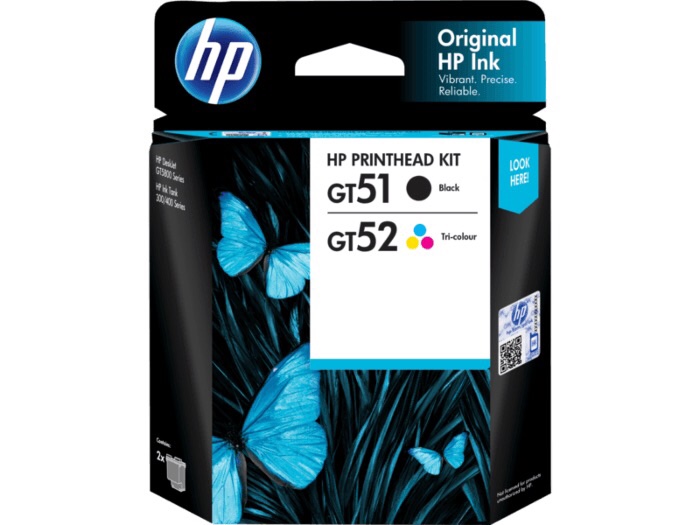
For HP DeskJet GT and HP Ink Tank printers, replacing damaged or worn-out printheads is easy as HP GT
5820/5810 and HP Ink Tank 415/315/310 original printhead replacement kits are now available at HP authorized service centers and channel partners nationwide. These are ideal for use in HP DeskJet GT 5810, 5811, 5820, 5821 All-in-One printers, and HP Ink Tank, 415, 315, and 310 printers.
Replacing HP printheads that are damaged or no longer functioning properly can also be hassle-free with an easy-to-follow step-by-step process.
To replace the black and tri-color printheads at the same time (an E-8 error occurs if only one new printhead is installed), turn on the printer and make sure paper is loaded. All ink levels should also be above the minimum fill line and the ink valve is unlocked to prevent ink from dripping. You also need to close the output tray extender and stow the output tray.
Next, open the exterior door found at the front of the printer, and then open the printhead access door. If the carriage does not move to the center of the printer, reach inside and manually move it to the center. Open the blue carriage latch by gently pushing down on it.
Lightly press down on the tri-color printhead to release it, and then pull the printhead out of its slot. Repeat these steps for the black printhead, carefully keeping the printheads upright during removal to prevent ink from leaking.
Open the packages of the new printheads and pull the orange plugs straight up from their tops. Use the pull tabs to remove the tape from the printhead contacts, taking care not to touch the copper-colored contacts or the ink nozzles as these could result in clogs, ink failure, and bad electrical connections.
Slide the printhead at a slight upward angle into the empty slot and gently push up on the printhead until it snaps into place. Note that the tri-color printhead goes to the left slot while the black printhead goes into the right slot.
Next, close the blue carriage latch by pushing down firmly until the latch snaps into place. Remember not to open the blue carriage latch after installing the printhead because it might result in severe ink system errors.
Close the printhead access door and exterior door. Pull out the output tray and raise the tray extender. At this point, a blinking “P” displays on the control panel.
After installing the new printheads, it is important to align them and prime the ink system to achieve the best print quality.
On the printer control panel, press and hold the “Resume” button for 3 seconds. The alignment starts when the blinking “P” becomes a blinking “A”. The printer then prints an alignment page. Lift the scanner lid and place the alignment page with the print side down on the right-front corner of the scanner glass, and then close the scanner lid.
On the control panel, press the “Start Copy Color” button to start the ink system priming process which can last up to 45 minutes. It is important not to move or disconnect power from the printer during this process. Priming is complete when the rotating lines stop and a “0” displays on the control panel.
With the HP GT and Ink Tank original printhead replacement kits, keeping your HP DeskJet GT and HP Ink Tank printers in optimum condition is never a problem. Get the HP printhead kits at HP authorized repair centers and service partners nationwide.